
How to Turn a Photo into Watercolors

by Shalwa
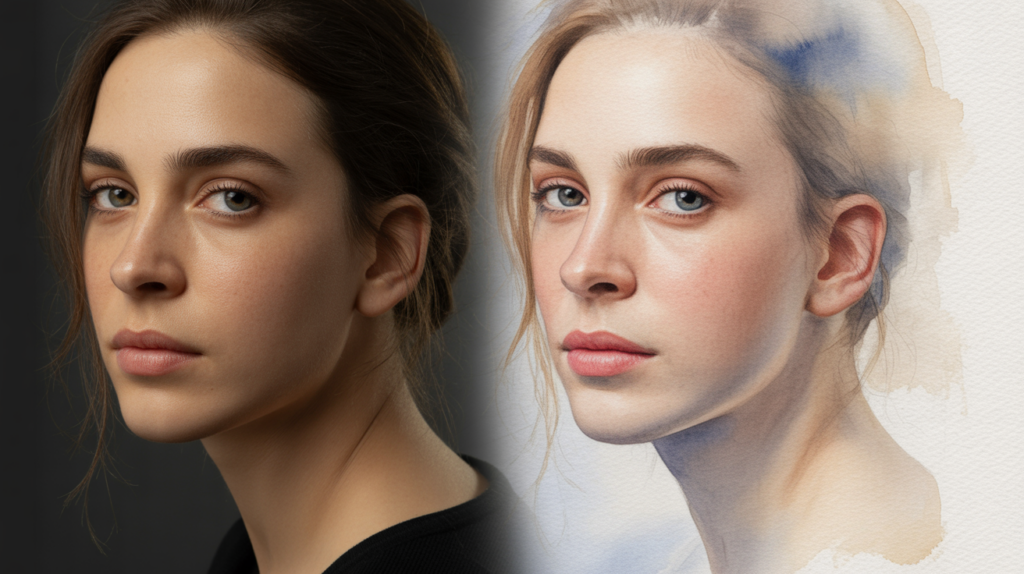
Turning a photo into a watercolor painting is a way to transform everyday images into soft, artistic artwork. Instead of editing pixels by hand, modern AI tools analyze your photo and recreate it in a watercolor style, complete with gentle brushstrokes, blended colors, and paper-like textures. The result looks like a hand-painted piece rather than a standard photo filter.
Watercolor styles are especially popular for portraits, landscapes, and personal gifts. Portraits gain a softer, more emotional look, landscapes feel dreamy and expressive, and everyday photos can become meaningful wall art or custom prints. Because watercolor is less rigid than realistic painting, it works well across many subjects and moods.
In the past, creating watercolor-style art required advanced digital painting skills or expensive software. Today, AI handles most of the artistic process automatically. This guide focuses on AI-based methods that are beginner-friendly, while also briefly touching on traditional digital painting for those who want more creative control.
to content ↑What Does “Photo to Watercolor” Mean in AI Art?
In AI art, “photo to watercolor” refers to transforming a real photograph into an image that looks like it was painted with watercolor techniques. This is not the same as applying a simple color filter. Instead of just changing tones or saturation, AI recreates the visual characteristics of watercolor painting, including softness, flow, and texture.
The goal is to preserve the main subject of the photo while replacing photographic detail with artistic elements that resemble traditional watercolor art. The final image feels painted rather than edited.
1. How AI Simulates Watercolor Painting
AI watercolor tools are trained on large datasets of real watercolor artworks and photos. By analyzing these examples, the model learns how watercolor behaves and applies those patterns to your photo.
Key elements AI simulates include:
- Brushstroke prediction, where edges and shapes are softened to mimic hand-painted strokes
- Color bleed and blending, allowing colors to flow into one another instead of staying sharply separated
- Translucent layering, which recreates the see-through quality of watercolor washes
- Paper texture simulation, adding subtle grain or fiber patterns similar to watercolor paper
Together, these elements create a natural, painterly effect that goes beyond basic photo filters.
2. Watercolor vs Oil, Sketch, and Other AI Art Styles
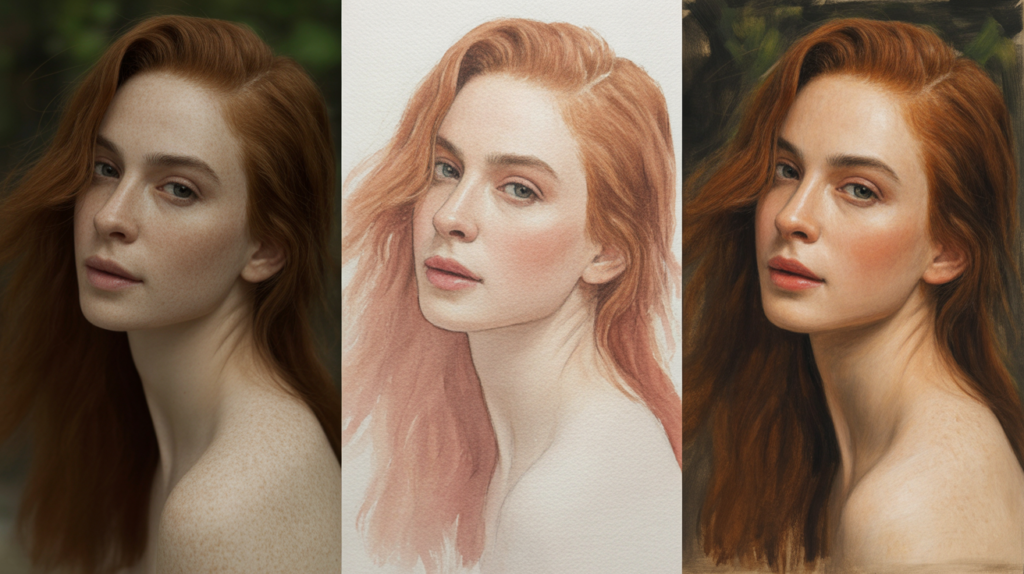
Watercolor stands out because of its softness and lightness. Unlike oil painting styles, which are thick and textured, watercolor uses gentle washes and less defined edges. Compared to sketch or pencil styles, watercolor adds color while still keeping an airy, unfinished feel.
Watercolor is often the better artistic choice when you want an image to feel emotional, calm, or expressive rather than bold or dramatic. It works especially well for portraits, nature scenes, pets, and gift artwork where a hand-painted look feels more personal and approachable.
When Should You Turn a Photo into Watercolors?
Turning a photo into a watercolor painting works best when you want to add emotion, softness, or artistic value to an image. This style is less about realism and more about feeling, mood, and presentation. Below are the most common and effective real-world use cases.
1. Watercolor Portraits for Gifts
Watercolor portraits are popular because they feel personal and handcrafted. The soft brushstrokes and blended colors create an emotional connection that standard photos often lack.
Common gift ideas include:
- Family portraits with a warm, timeless look
- Couple or anniversary portraits with a romantic feel
- Pet portraits that feel expressive and artistic
These are often used for birthdays, anniversaries, weddings, or memorial gifts.
2. Landscapes and Travel Photos as Wall Art
Watercolor works especially well for landscapes because it simplifies detail and enhances atmosphere. Skies, water, and natural scenery benefit from gentle color transitions and soft edges.
Best photo types for this style:
- Nature scenes like mountains, forests, and beaches
- Cityscapes with architectural silhouettes
- Vacation photos meant for framing or printing
The result often feels more like a painting than a photograph, making it suitable for home decor.
3. Creative Content for Social Media and Blogs
Watercolor-style images stand out in digital content because they look unique and artistic. They help create a consistent visual identity and attract attention without feeling overly polished.
Popular uses include:
- Profile pictures with a softer aesthetic
- Blog headers or feature images
- Thumbnails for articles or creative posts
This style works well for lifestyle, travel, art, and personal branding content.
4. Custom Prints and Home Decor
Many people turn photos into watercolor art specifically for printing. The painted look translates well to physical formats and feels intentional rather than decorative.
Common print formats:
- Posters and framed prints
- Canvas wall art
- Greeting cards and invitations
Watercolor art blends easily into different interior styles and often feels more meaningful than standard photo prints.
to content ↑What You Need Before Converting a Photo to Watercolor
Preparing your image properly makes a noticeable difference in how realistic and appealing the watercolor result looks. While AI tools handle the artistic transformation, the quality of the input photo still plays a major role. A few simple checks before you start can save time and reduce disappointment.
1. Choosing the Right Photo
Not every photo converts equally well into watercolor art. Images with a clear subject and balanced lighting give AI more information to work with, which leads to smoother brushstrokes and cleaner color transitions.
For best results, look for photos with:
- A clear and well-defined subject
- Even, natural lighting without harsh shadows
- A simple or uncluttered background
Busy backgrounds and strong contrast can distract from the watercolor effect and make the image feel noisy rather than artistic.
2. Portraits vs Landscapes (What Works Best)
Both portraits and landscapes work well as watercolor art, but they benefit from different strengths.
Portraits rely heavily on face clarity. Clear eyes, facial structure, and soft lighting help the AI preserve expression while applying painterly effects. Landscapes depend more on environmental detail, such as skies, water, trees, and buildings, where watercolor blending can enhance mood and atmosphere.
If your goal is emotional impact, portraits usually work best. If you want decorative or scenic artwork, landscapes are often more forgiving.
3. Resolution and Image Quality Tips
High-resolution images give AI more detail to transform into brushstrokes, color washes, and texture. Low-resolution photos can still work, but the final watercolor may look soft or blurry when printed or viewed on large screens.
If your photo is small or slightly blurry, AI upscaling can help. Tools like ArtSmart.ai are useful for increasing resolution and enhancing clarity before applying a watercolor style. Upscaling first allows the watercolor effect to look cleaner and more refined.
General quality tips:
- Use the highest resolution image available
- Avoid heavily compressed files
- Consider AI upscaling before watercolor conversion if the image looks soft
Starting with a clean, sharp image gives you a stronger foundation for creating watercolor-style artwork that looks intentional and polished.
to content ↑How to Turn a Photo into Watercolors Using AI (Step-by-Step)
This section walks through a simple, beginner-friendly workflow that works across most AI watercolor tools. You do not need artistic skills or specialized software. The steps below focus on the decisions that matter most so you can get clean, painterly results without guesswork.
Step 1: Upload Your Photo
Start by uploading the photo you want to convert. Most AI tools support common formats like JPG and PNG. Some also accept HEIC or WEBP, but JPG and PNG are the safest choices.
For best results, use the highest-resolution image you have. Clear details help the AI create smoother brushstrokes and more natural color transitions. If your image looks soft or pixelated, consider upscaling it before applying the watercolor style.
Quick tips:
- Use JPG or PNG files
- Avoid heavily compressed images
- Higher resolution produces cleaner watercolor textures
Step 2: Choose a Watercolor or Artistic Style
After uploading, select a watercolor-style preset or artistic category. Different styles produce very different results, even with the same photo.
Common watercolor options include:
- Soft wash, which uses light color layers and subtle blending
- Vibrant watercolor, which applies stronger pigments and visible brush texture
- Abstract watercolor, which simplifies shapes and leans toward expressive art
If you are unsure, start with a soft wash style. It usually produces the most natural and versatile result.
Step 3: Adjust Watercolor Intensity and Style Settings
Many AI tools offer sliders or controls that affect how strong the watercolor effect appears. These settings help balance realism and artistic expression.
Typical controls include:
- Brush strength, which affects how visible the strokes look
- Color vibrancy, which controls saturation and pigment intensity
- Detail preservation, which keeps important features like faces recognizable
Increase intensity gradually. Subtle adjustments usually look more realistic than extreme settings.
Step 4: Preview and Regenerate Variations
AI watercolor tools often produce slightly different results each time. Generating multiple variations gives you more options and helps avoid unnatural color or brush patterns.
Review each version carefully and look for:
- Smooth color blending
- Balanced saturation
- Clear subject without distortion
Choose the version that feels painted but still clean and intentional.
Step 5: Download or Print Your Watercolor Image
Once you are happy with the result, export the final image. Choose a format and resolution based on how you plan to use it.
Recommended export settings:
- PNG for highest quality and printing
- JPG for smaller file size and online sharing
- Full resolution for wall art, gifts, or canvas prints
If you plan to print, make sure the image meets print-size requirements so the watercolor texture stays sharp and detailed.
to content ↑Best AI Tools to Turn Photos into Watercolor Art
Choosing the right AI tool makes a big difference in how your watercolor artwork looks. Some tools focus on artistic stylization, others prioritize ease of use, and some work best as preparation tools to improve image quality before stylizing. Below are reliable AI tools that are commonly used to turn photos into watercolor-style art, each suited to different needs and experience levels.
1. ArtSmart.ai
ArtSmart.ai is best used as a preparation step rather than a direct watercolor generator. It enhances image quality, sharpens details, and upscales low-resolution photos so they work better with watercolor-style AI tools.
Best for:
- Upscaling small or blurry photos
- Improving portrait clarity before stylization
- Preparing images for print-quality watercolor art
Limitations:
- Does not apply watercolor styles directly
2. Fotor AI Watercolor Effect
Fotor provides a simple AI watercolor effect that works well for beginners. It focuses on fast, one-click transformations that turn photos into soft, painterly images.
Best for:
- Beginners
- Quick watercolor effects
- Portraits and simple scenes
Limitations:
- Limited control over brush intensity and texture
3. BeFunky Watercolor GFX
BeFunky offers stylized watercolor effects that lean toward illustration rather than realism. It is well-suited for creative projects and social media visuals.
Best for:
- Consistent artistic styles
- Posters and social content
- Users who want manual sliders without complexity
Limitations:
- Less realistic watercolor texture
4. Waterlogue (Mobile Watercolor App)
Waterlogue is a mobile-focused app known for clean watercolor aesthetics. It works well for travel photos and portraits edited on a phone or tablet.
Best for:
- Mobile workflows
- Casual creative projects
- Quick sharing
Limitations:
- Limited resolution for large prints
- Mobile-only editing
5. DeepAI Image to Art (Watercolor Style)
DeepAI offers experimental AI watercolor outputs using generative models. Results can vary, but it is useful for creative exploration.
Best for:
- Free testing
- Artistic experimentation
- Non-commercial use
Limitations:
- Inconsistent results
- Limited control
6. NightCafe (Watercolor Style Presets)
NightCafe uses neural style transfer and generative AI to apply watercolor aesthetics. It is best for expressive and artistic reinterpretations rather than realistic photo preservation.
Best for:
- Creative watercolor art
- High-resolution artistic outputs
- Experimenting with multiple styles
Limitations:
- Less accurate photo details
- Requires multiple generations to refine
Quick guidance:
If image quality matters, enhance or upscale first using ArtSmart.ai. Then apply a watercolor style using a dedicated AI art tool. This two-step approach usually produces cleaner brushstrokes, better color blending, and more professional-looking watercolor results.
Tips for Getting Realistic Watercolor Results with AI
Getting a convincing watercolor look is less about pushing effects and more about subtlety. Small choices in the photo you use and how you apply the style can make the difference between a natural watercolor painting and an overly processed image.
1. Use Soft Lighting Photos for Better Wash Effects
Watercolor relies on gentle transitions between light and color. Photos taken in soft, natural light produce smoother washes and more believable blending. Harsh shadows and strong highlights often break the watercolor illusion.
2. Avoid Overcrowded Backgrounds
Simple backgrounds translate better into watercolor art. When a photo contains too many objects or textures, the AI may struggle to simplify the scene. This can lead to muddy colors or uneven brushstroke patterns.
3. Adjust Intensity Gradually
It is tempting to increase the watercolor effect to make it stand out. In most cases, subtle adjustments look more realistic. Gradually increase intensity until the image looks painted but still balanced.
4. Choose the Right Paper Texture (If Available)
Some AI tools allow you to select paper textures such as smooth, cold press, or rough. Lighter textures work well for portraits, while textured paper adds character to landscapes. Choose a texture that supports the subject rather than overpowering it.
5. Try Multiple Styles Before Finalizing
AI watercolor tools often generate different results each time. Testing several variations helps you find a version with better color balance and brush flow. Do not settle for the first result if the tool allows regeneration.
to content ↑Common Mistakes to Avoid When Turning Photos into Watercolors
Watercolor effects work best when they are subtle and intentional. Many disappointing results come from pushing the style too far or starting with the wrong type of image. The table below highlights practical do’s and don’ts to help you avoid common pitfalls and achieve more natural, painterly watercolor results.
| Do | Don’t |
|---|---|
| Use soft, evenly lit photos | Use images with harsh shadows or strong highlights |
| Keep edges slightly soft for natural brush flow | Over-sharpen the image before stylizing |
| Increase watercolor intensity gradually | Push saturation or effects too far |
| Accept watercolor as an artistic style | Expect photorealistic detail |
| Start with high-resolution images | Use small or heavily compressed files |
| Upscale images when needed for cleaner results | Apply watercolor effects to low-quality photos |
| Choose simple backgrounds for better blending | Use overcrowded or cluttered scenes |
| Try multiple style variations | Settle for the first generated result |
Before and After Examples (What to Expect)
Before and after examples help set realistic expectations when turning photos into watercolor art. AI tools can create beautiful painterly effects, but results depend on the type of photo, the chosen style, and how much detail the original image contains. Understanding these differences helps avoid disappointment and makes it easier to choose the right photo and settings.
1. Portrait Photo to Watercolor Painting
Portraits usually convert very well into watercolor art. Faces provide clear structure for the AI to preserve expression while softening details into brushstrokes. Skin tones become gentle washes, and features like eyes and hair are simplified but still recognizable.
What to expect:
- Softer facial details
- Smooth color transitions
- A more emotional, hand-painted look
2. Landscape Photo to Watercolor Art
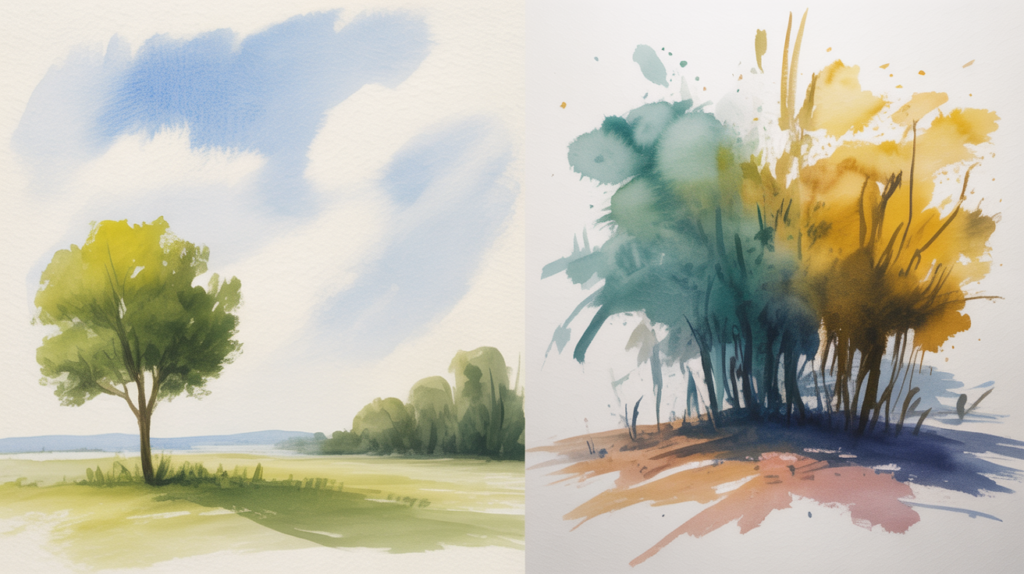
Landscapes benefit from watercolor’s ability to blend colors and simplify scenery. Skies, water, and natural elements often look dreamy and expressive after conversion. Fine details may be reduced, but atmosphere is usually enhanced.
What to expect:
- Blended skies and backgrounds
- Less sharp detail in distant objects
- Strong mood and visual flow
3. Soft Watercolor vs Vibrant Watercolor Styles
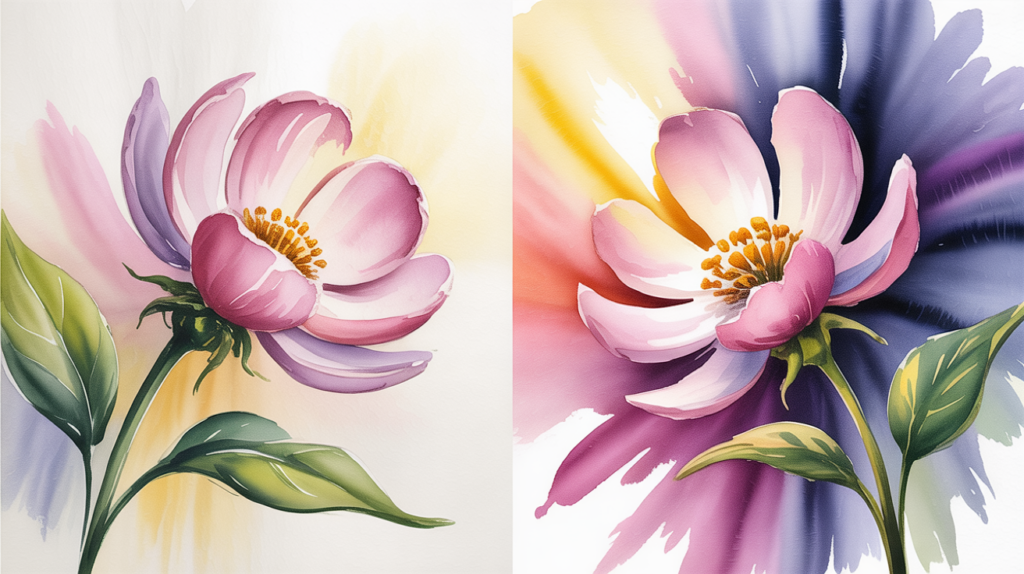
Different watercolor styles produce very different results. Soft watercolor focuses on light washes, subtle color, and minimal contrast. Vibrant watercolor uses stronger pigments and more visible brush textures.
What to expect:
- Soft styles feel calm, elegant, and minimal
- Vibrant styles feel bold, artistic, and expressive
- The same photo can look very different depending on style choice
4. Simple Photos vs Complex Scenes
Photos with a clear subject and simple background convert more cleanly into watercolor art. Complex scenes with many objects or heavy texture can look busy or uneven after stylization.
What to expect:
- Simple photos produce cleaner, more cohesive artwork
- Complex scenes may lose detail or look abstract
- Background complexity affects overall realism more than subject clarity
Final Thoughts: Is AI the Best Way to Create Watercolor Art?
AI has made watercolor-style art accessible to almost anyone. For beginners and casual creators, it offers a fast and simple way to transform photos into expressive artwork without learning painting techniques or complex software. In just a few steps, AI tools can produce results that look artistic, polished, and ready to share or print.
Traditional watercolor painting, whether physical or digital, still offers the highest level of artistic control. Artists can decide exactly how each brushstroke behaves, how colors blend, and which details remain. However, this approach requires time, practice, and skill, which may not be practical for everyone.
For most people, AI watercolor tools strike the right balance. They are affordable, versatile, and easy to use, making them ideal for gifts, home decor, social content, and creative projects. While they may not replace traditional art, they open the door for anyone to create watercolor-style artwork with confidence.
to content ↑FAQs
1. Do I need artistic skills to turn a photo into watercolor art using AI?
No. AI watercolor tools are designed for beginners and handle the artistic process automatically. You only need to upload a photo and choose a style, making it easy for anyone to create watercolor-style artwork.
2. Are AI watercolor results really hand-painted in style?
AI watercolor images are not hand-painted, but they are designed to mimic traditional watercolor techniques. This includes soft brushstrokes, color blending, and translucent washes that resemble real watercolor paintings.
3. Can I use AI watercolor art for printing or gifts?
Yes. Most AI tools allow high-resolution exports that work well for printing. As long as you download the image at full quality, you can use it for framed prints, canvas art, greeting cards, or gifts.
4. Are free AI watercolor tools good enough?
Free tools are useful for testing styles and casual use, but they often limit resolution, add watermarks, or restrict downloads. Paid tools are usually better for print-quality results and consistent output.
5. Can I turn pet photos into watercolor paintings?
Yes. Pet photos work very well with watercolor styles, especially when the subject is clear and well-lit. Fur textures often translate nicely into soft brushstrokes.
6. How do I get a softer watercolor look instead of a bold one?
Choose a soft or light watercolor style if available and reduce intensity or saturation settings. Photos with even lighting and simple backgrounds also produce gentler results.
7. Can AI create watercolor art from text prompts instead of photos?
Some AI tools support text-to-image generation in watercolor styles. However, photo-to-watercolor tools are better when you want to preserve a specific person, place, or memory.
Sources: